Admin UI
Verified Code examples on this page have been automatically tested and verified.Use the agentgateway Admin UI to view and manage your standalone proxy configuration in real time.
About
The agentgateway Admin UI is a built-in web interface that runs alongside the proxy on port 15000 by default. In standalone mode, the UI is fully interactive — you can inspect your current configuration and manage your proxy without restarting agentgateway.
The Admin UI is separate from the Web UI integrations, which are third-party AI chat frontends (such as Open WebUI or LibreChat) that you connect to agentgateway as a backend. The Admin UI is the management interface for agentgateway itself.
Open the Admin UI
Start agentgateway with a config file.
agentgateway -f config.yamlExample output:
INFO app serving UI at http://localhost:15000/ui
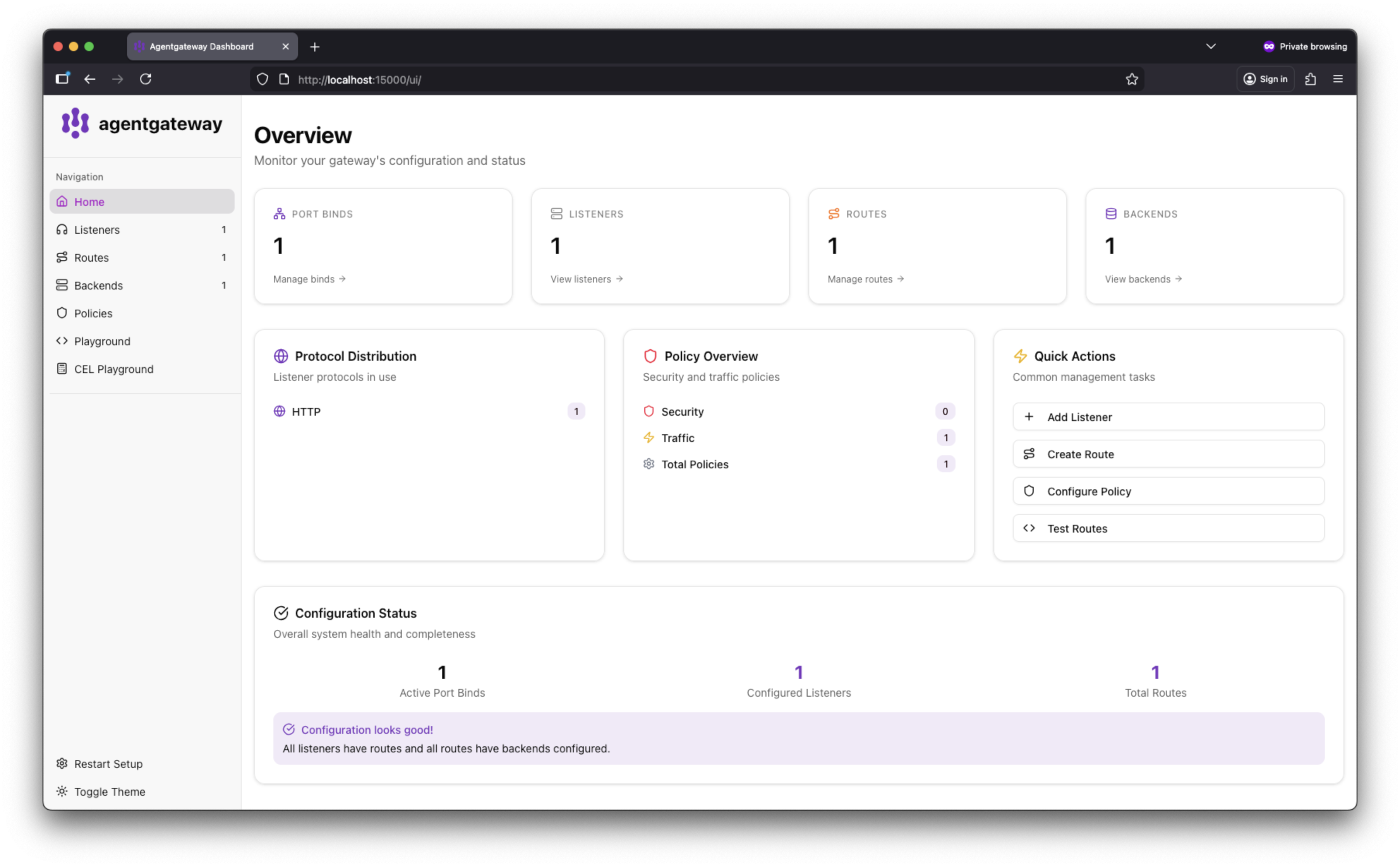
Open http://localhost:15000/ui/ in your browser.
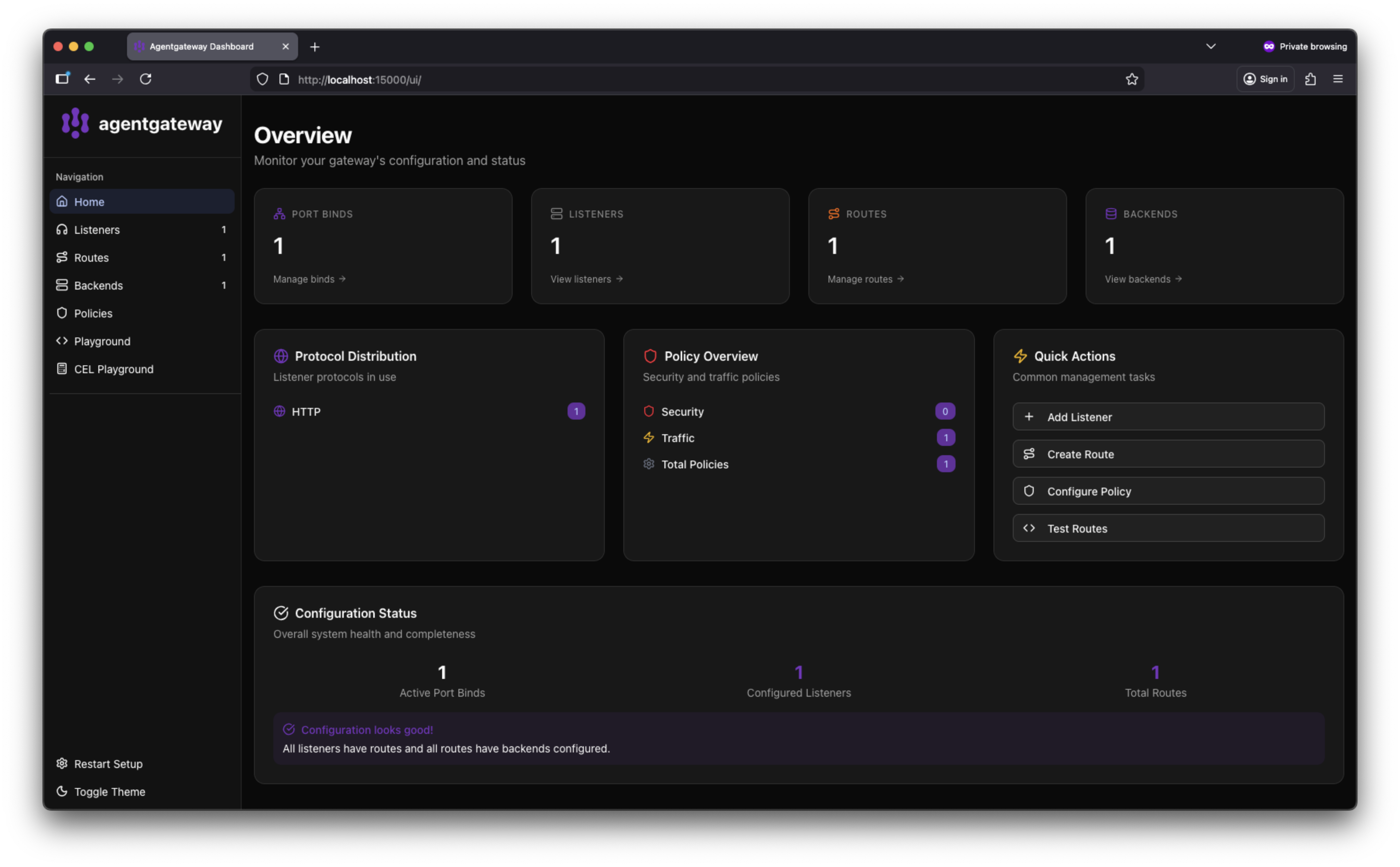
The Admin UI dashboard shows your configured listeners and port bindings.
Customize the Admin UI port
By default, the Admin UI binds to localhost:15000. To use a different address or port, set adminAddr in the config section of your config file.
Add or update the
adminAddrfield in your config file. The value must useip:portformat.# yaml-language-server: $schema=https://agentgateway.dev/schema/config config: adminAddr: localhost:9090Start agentgateway with the updated config.
agentgateway -f config.yamlExample output:
INFO app serving UI at http://localhost:9090/ui
- Open the UI at the new address. In this example, navigate to http://localhost:9090/ui/.
adminAddr, update any agentgateway admin API commands to use the new address. For example, change curl http://localhost:15000/logging to use the new port.